
Features in practice
Among Terminal keeps native VTE terminals in a single GNOME window. This guide connects each everyday control to a real demonstration and its detailed reference. The recordings use synthetic projects; zsh, Starship, ll, mc and htop are demo tools, not software installed or configured by Among Terminal.
Full-length overview videos · Default shortcuts
Split and resize terminals
Press Ctrl+Shift+N to split the focused pane. A wide pane splits side by side; a tall pane splits top to bottom. Repeat to build a nested layout with separate shells, for example a project listing, file manager and process monitor.
Drag a divider to allocate more space, or use Ctrl+Shift+Right to grow the focused pane and Ctrl+Shift+Left to shrink it. Resizing keeps the terminals running rather than starting replacement shells.
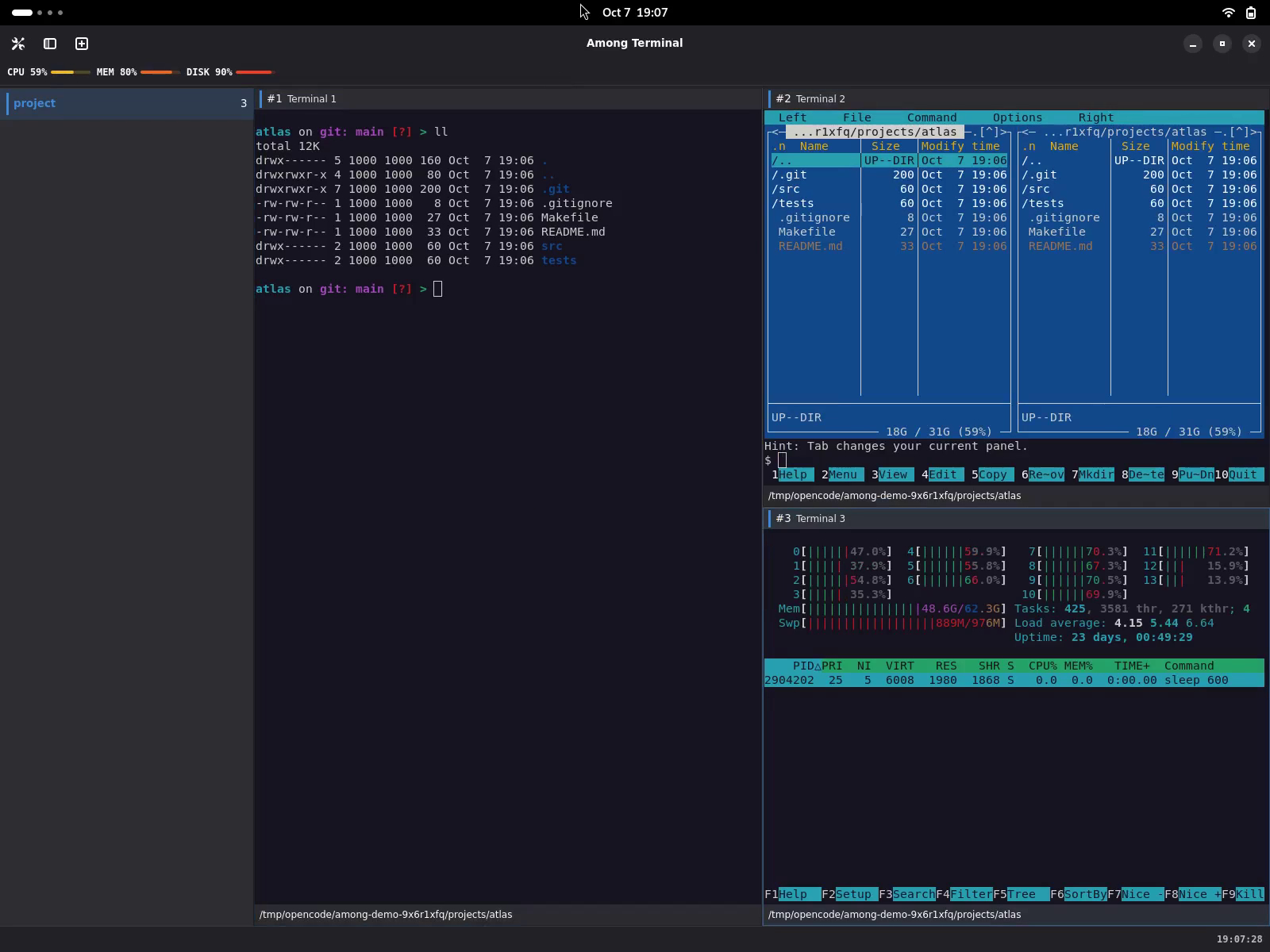
Demonstrations: split panes · keyboard resize · mouse resize.
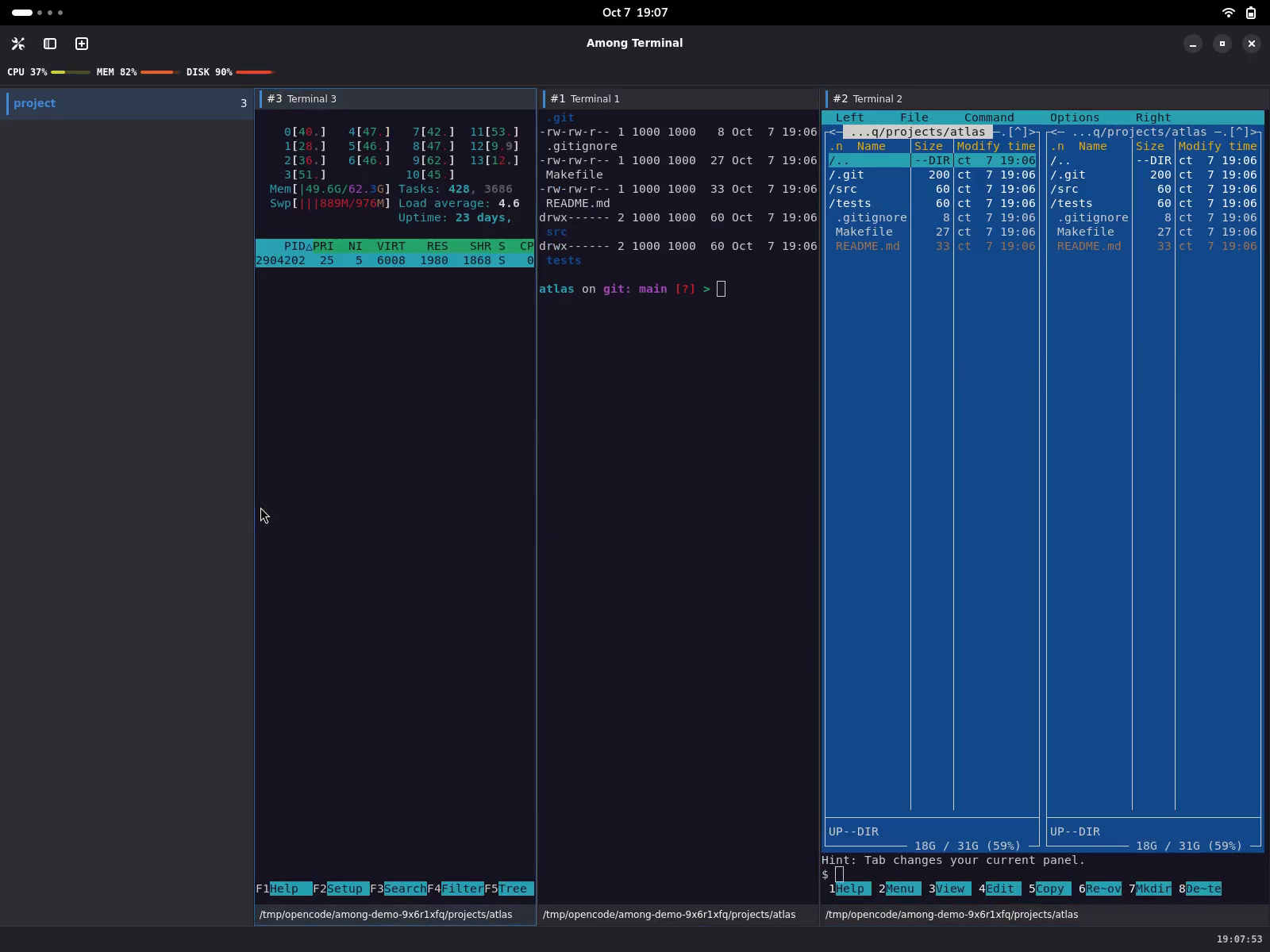
Rearrange panes without restarting tools
Drag a pane header, not terminal text, onto another pane's edge. Left/right edges place panes side by side; top/bottom edges stack them. The drop indicator previews the destination. The moved terminal retains its process and focus; dragging inside terminal text still selects text.
Focus, zoom and fullscreen
- Click a terminal or its header to focus it; Alt+Arrow moves between panes.
- Ctrl+Shift+X expands the focused pane to fill its workspace. Press again to recover the same nested layout; hidden panes keep running.
- F11 enters or leaves fullscreen. Normal startup is maximized, not fullscreen.
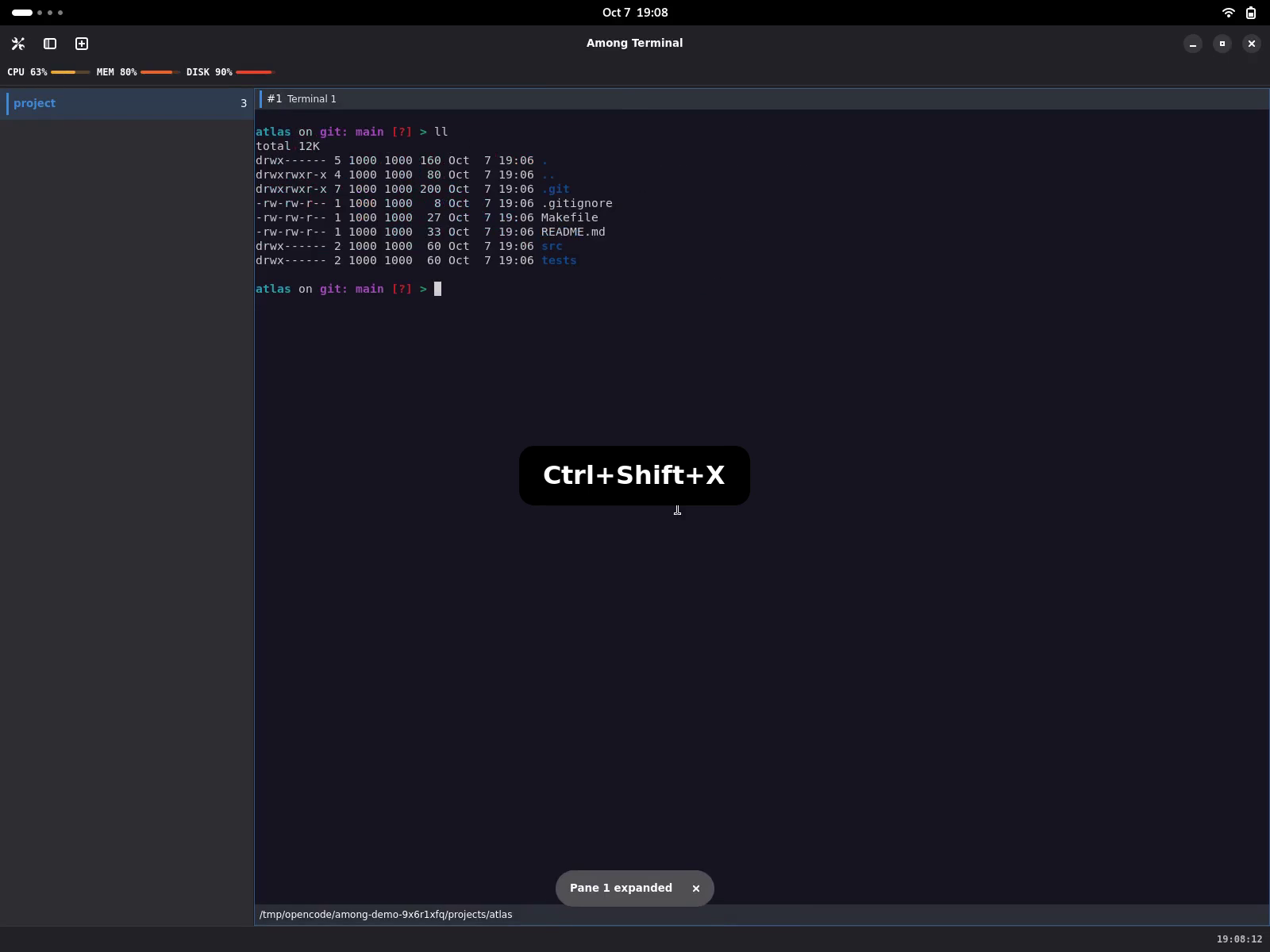
Demonstrations: focus · zoom and restore · fullscreen.
Organize projects into workspaces
Use the header's New workspace button or Ctrl+Shift+T. Double-click its sidebar name to rename it: Enter accepts, Escape cancels, and empty names are rejected. Each workspace has a colour marker and a live terminal count.
Click a sidebar entry, use Alt+1…9, or cycle with Ctrl+PageUp/PageDown. Inactive workspaces keep their terminals and processes running. The sidebar collapse button reduces the list to a strip: colours and counts remain visible, and every workspace remains reachable.
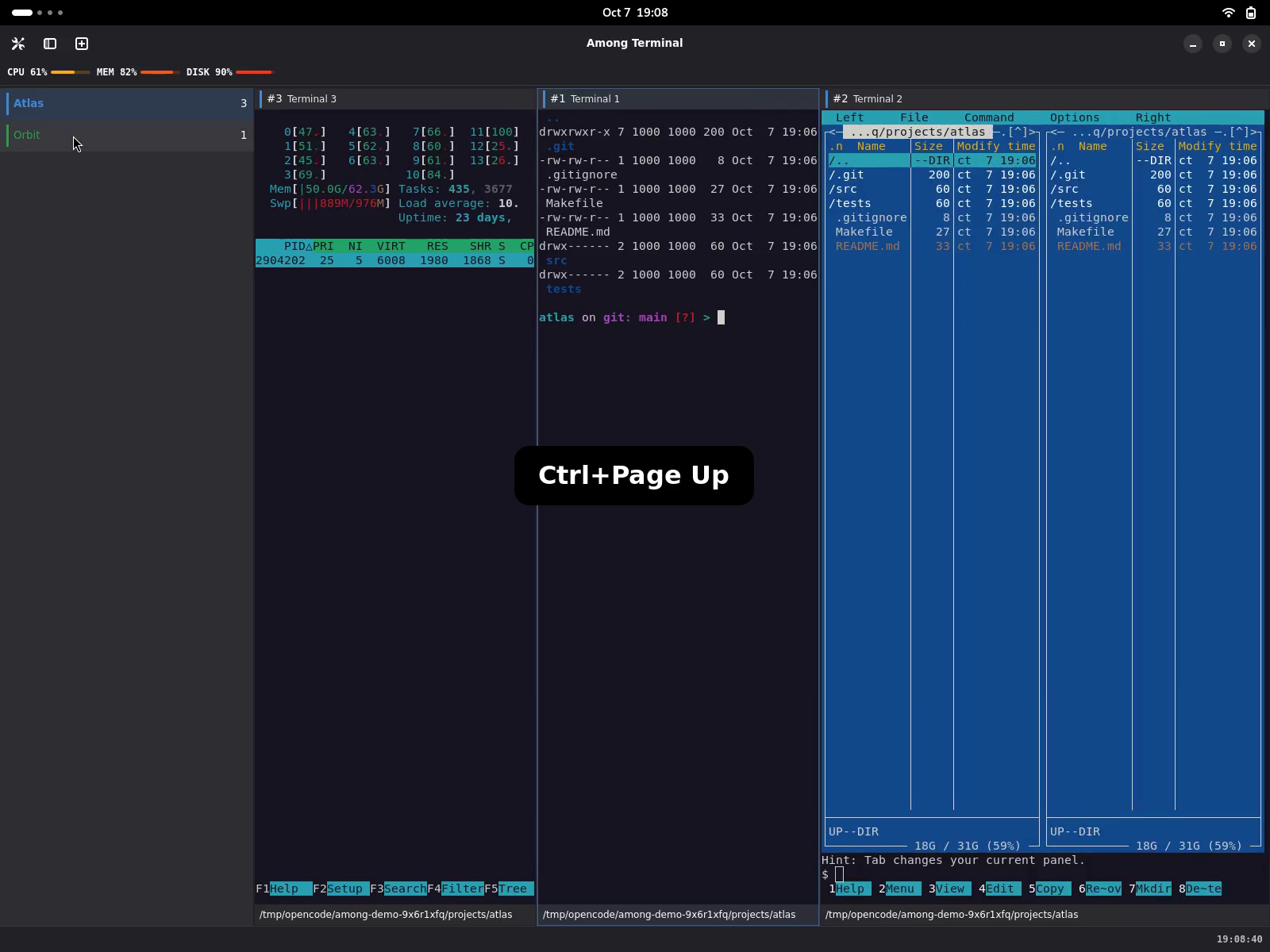
Demonstrations: create, rename and switch · collapse and expand the sidebar.
Clipboard, links and pane actions
Right-click a terminal, or press Shift+F10 in the focused terminal, to open its native menu. In mouse-reporting programs, use Shift+right-click; an ordinary right-click still goes to the program. Menu actions belong to the pane that requested them, including when another pane was previously focused.
Copy copies that pane's selected text; without selection it is disabled. Paste uses VTE's normal text-paste handling, including bracketed paste when requested by the terminal program; without a clipboard text format it is disabled. Select All selects available terminal text and scrollback, not other panes. Copy/Paste availability follows selection and clipboard changes even while the menu is open. Pasting sends text to the program: it is not session command replay, but a shell can interpret pasted newlines, so only paste text you trust.
Pointer-opened menus can offer Copy Link and Open Link for explicit hyperlinks and plain absolute http, https and mailto URLs. An explicit hyperlink takes precedence over its displayed text. Other valid explicit schemes are copy-only; malformed, control-containing or oversized targets are not offered. Keyboard-opened menus omit link entries rather than reuse an old pointer target. Open Link requests the desktop handler asynchronously, never a shell command; handler failure shows an error while the terminal remains usable.
Split Pane, Expand/Restore Pane and Close Terminal reuse the existing pane controls. Their shortcut hints follow Settings, and removing a shortcut does not disable its menu action. Arrow keys navigate, Enter activates, and Escape returns to terminal input. No context-menu recording is included in the videos.
Optional live status plugins
After installing the examples, open Settings with Ctrl+, and select Plugins. All three examples are disabled by default; enable only the ones you want. Switches apply immediately and persist on restart.
| Plugin | Where it appears | What it reports |
|---|---|---|
clock | Right application footer | Local time, including seconds |
system-status | Application header | CPU, memory and root-filesystem usage, with percentages and meters |
pane-pwd | Each pane footer | That pane's known directory; the tooltip contains the full path |
Directory changes need your shell to publish OSC 7; installing Starship alone does not supply it. Unknown directories are not replaced with another pane's path. Resource readings describe the plugin's process/mount namespace, which may differ from the whole host in a sandbox. Plugins run as separate processes, but that is fault isolation, not a security sandbox: install only trusted code.
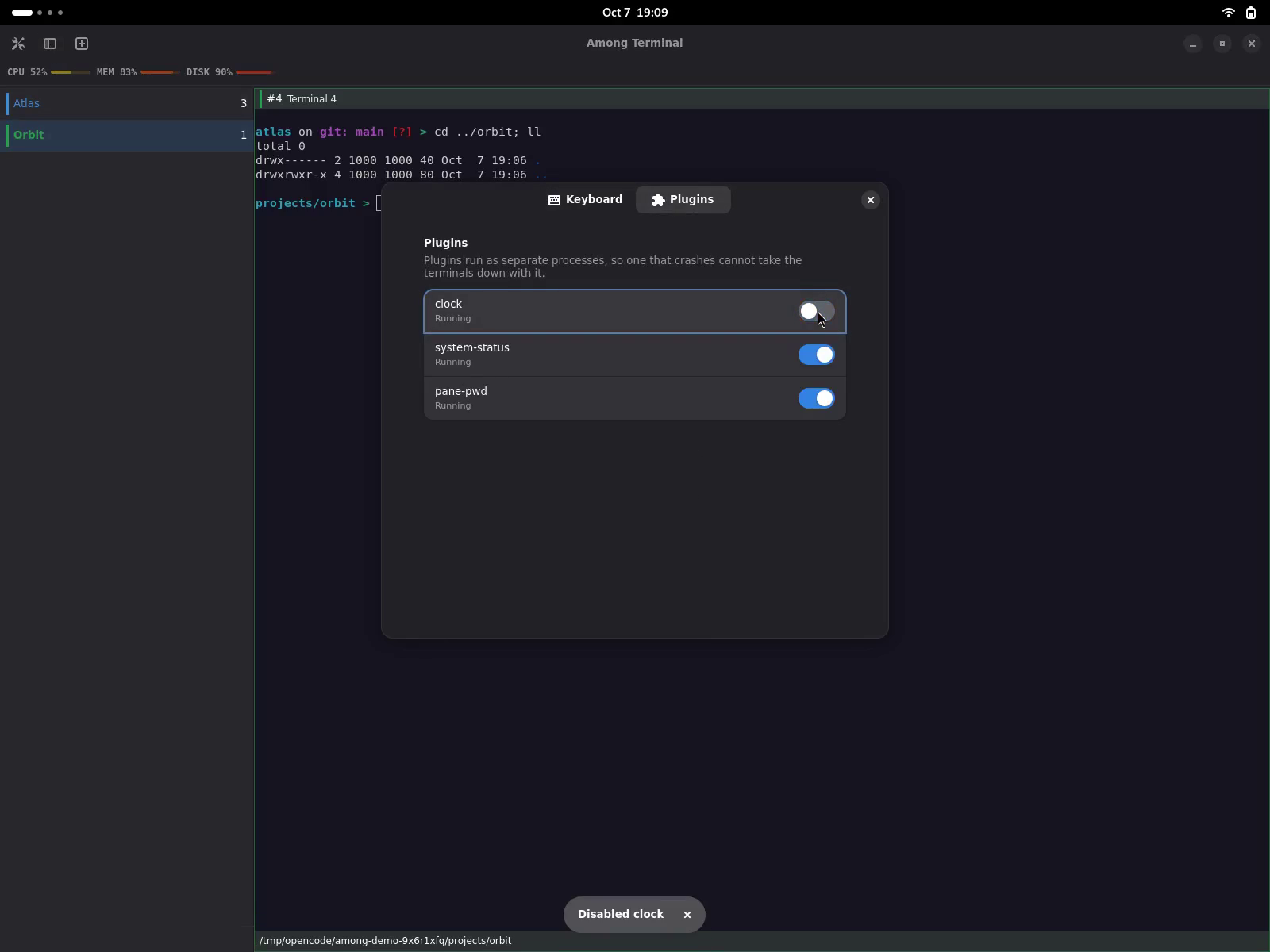
Live status and directory integration · Third-party plugin protocol.
Restore a layout, not yesterday's commands
On a new launch with a saved session, choose Restore or Start new. Restoration recovers workspace names, colours, nested splits, focus and known directories, including inactive workspaces. Every terminal starts a fresh shell: commands, running tools and scrollback are not replayed.
The demonstration restores four shells in different project directories, then manually runs ll. Changed directories require shell OSC 7 reporting even if the directory plugin is disabled. Missing directories fall back to an accessible home/startup directory and are reported in Settings. Storage failures are visible and retryable; recent changes can be lost after a crash.
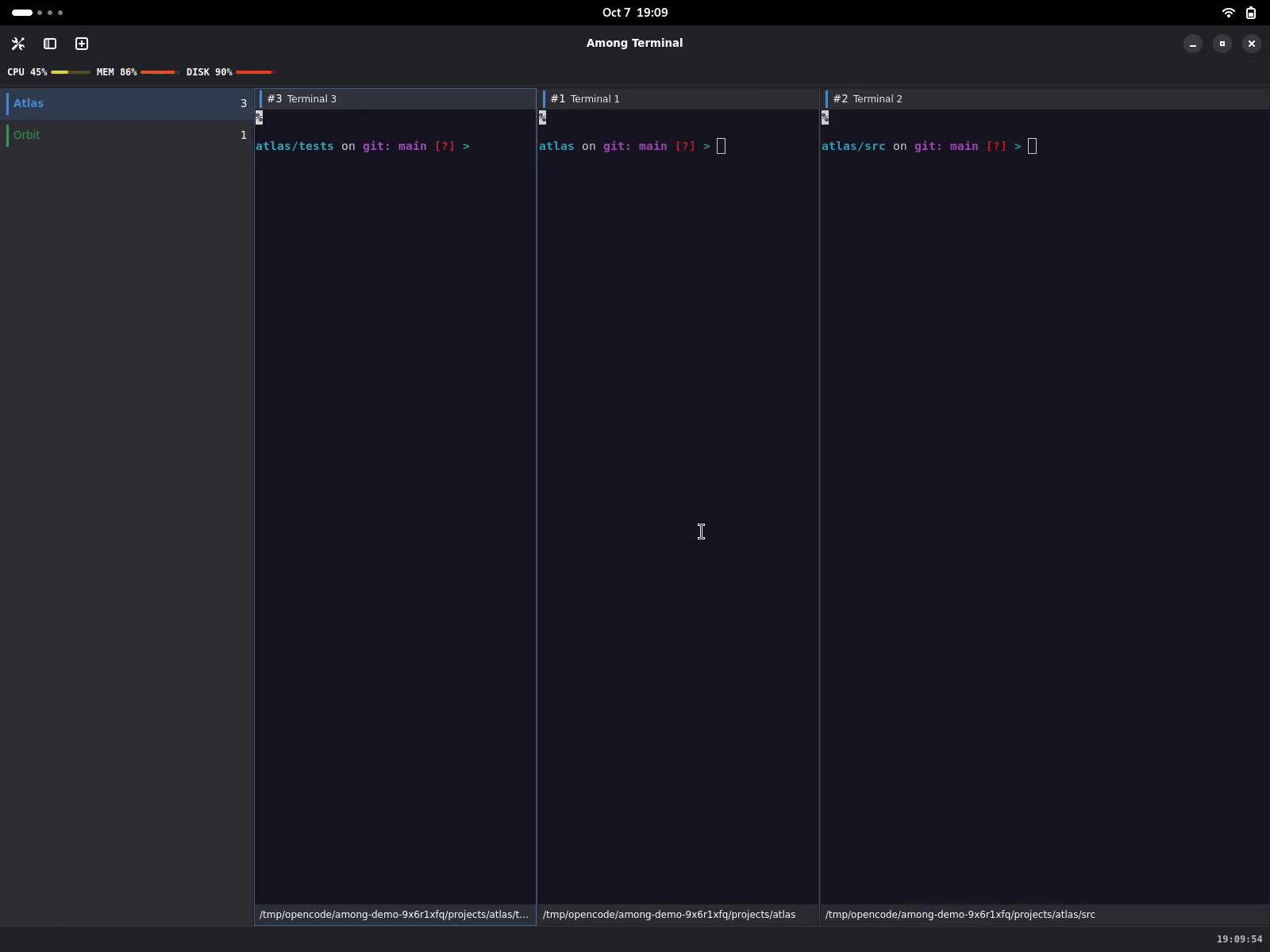
Session consent, storage and recovery limits.
Close a pane and keep working
Ctrl+Shift+W closes the focused pane and its process. The sibling that fills the space receives focus, so the next keystrokes reach a surviving terminal. Closing a workspace's last pane closes that workspace; the final workspace asks for confirmation before the application exits. Closing a pane can end a running job: this is not a detach operation.
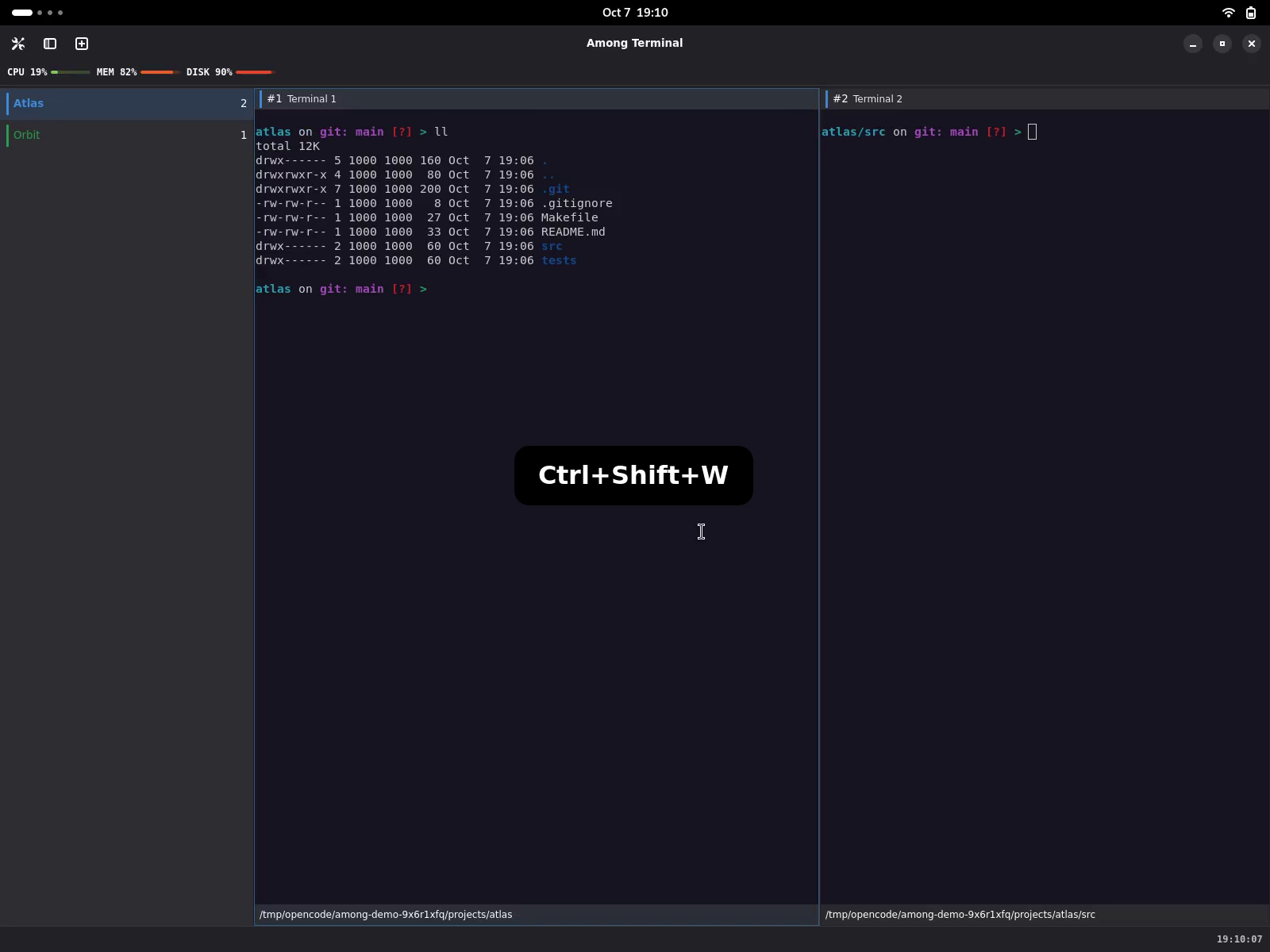
Closing, process exit and focus rules.
Appearance and preferences
The native interface supports light and dark styling. Shell prompts and terminal colours are configured separately; Among Terminal does not import GNOME Terminal profiles.
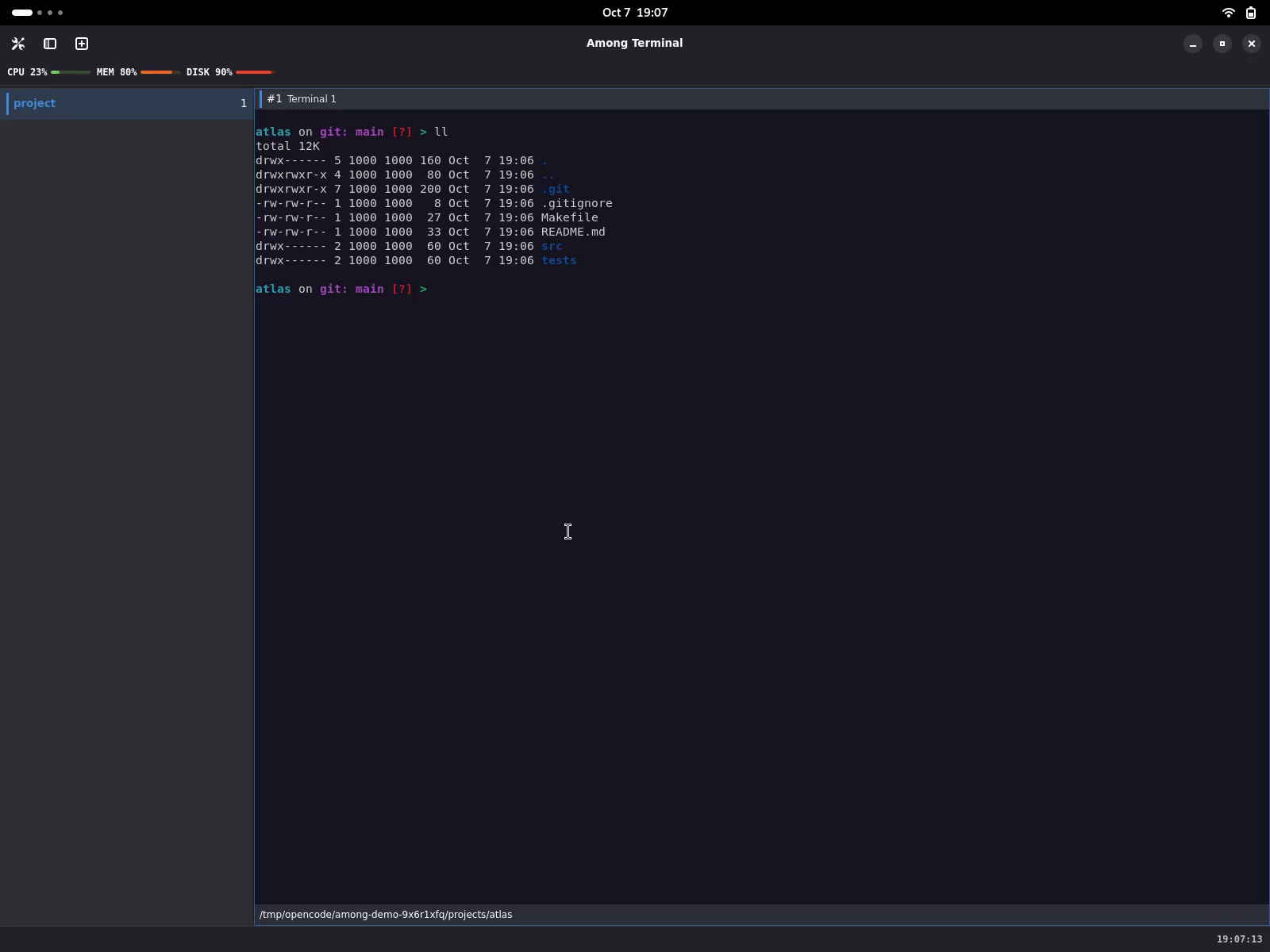
In Settings → Keyboard, select an action and press a new shortcut, or use Escape to remove its binding. Changes take effect without restarting and are saved together with explicit unbinding. Save failures leave the current edit active for this session and show a warning; a later edit retries saving.
Shortcut editing and storage recovery are documented but are not demonstrated in these clips. See shortcut controls and preference persistence.
The written instructions explain each action without requiring video playback. Demonstrations show native X11 behaviour; they do not establish support for untested platforms or assistive technologies.